PDF not searchable? Why Ctrl+F finds nothing, and how to fix it
You can see the word on the page, but search says there are no results. Here's how to find out why in under a minute, and the fix for each cause.
By the PDF ProMaster team · Fact-checked 27 October 2026
Quick answer: usually the PDF is a scan or a photo. Each page is a picture of text, so there are no words in the file for search to find. Try to select a word to check. To fix it, run OCR (optical character recognition), which reads the picture and adds real, invisible text to each page. OCR PDF does this for free in your browser.
Test your PDF in under a minute
- Try to select a word. Drag across a sentence. If nothing highlights, or the whole page highlights like a photo, the page is a picture. Zoom in close: blurry edges usually mean a scan, sharp edges mean text turned into shapes.
- Copy a sentence and paste it into a plain text app, such as Notepad or TextEdit. If you get the same words, the text is fine and the problem is the search itself (see below). If you get symbols or random letters, the text is there but scrambled.
- Optional: check the fonts. In Adobe Acrobat, choose File > Properties and open the Fonts tab. Adobe says it lists the fonts used in the document. A PDF made only of scanned pages has no text, so it usually lists none.
| What you see | Likely cause | Fix |
|---|---|---|
| No words can be selected | Scanned or photographed pages, or text turned into shapes | OCR PDF with Only pages without text |
| Words select, but paste as symbols or random letters | Scrambled text inside the file | OCR PDF with Every page |
| The original was searchable, the smaller copy isn't | Compression that turned pages into pictures | Use the original, or run OCR on the smaller copy |
| Words paste fine, but search misses some of them | The search itself, for example words split across lines | Search for part of the word |
Why search finds nothing
1. The pages are scans or photos
This is the most common reason. A scanner, a phone's document scanner or a photo turned into a PDF all store a picture of the paper. Your PDF reader shows the picture, but there are no letters inside the file, so search has nothing to match. Many scanner apps can add text automatically, often with a setting called OCR or "searchable PDF", but it isn't always switched on. If you only need a few lines from a scan or a photo, our guide on how to copy text from a scanned PDF covers quick options on your phone and computer too.
2. The text was turned into shapes
Design software can convert text into outlines, often so a printed design looks exactly right on any machine. Adobe explains that outlined text "loses its text properties". It still looks sharp when you zoom in, unlike a scan, but to a PDF reader it's a drawing, not words. OCR fixes this in the same way as a scan.
3. The text is there, but scrambled
A PDF stores text as codes plus the fonts that draw them. To turn those codes back into letters, the file often needs a map from each code to a real character. When an app leaves that map out or gets it wrong, the page still looks perfect, but search and copy see different characters from the ones you see.
To check our advice, we made a sample invoice that looks completely normal but has no such map. Pulling the text out of it gave a string of random letters and symbols, and a search for "Northfield", the first word on the page, found nothing. OCR PDF on its default setting skipped the page, because the page already contains text, and said so. With Every page selected, it read the page from how it looks, and the company name, the line items we checked and the £157.50 total all became searchable.
One catch: the scrambled text stays in the file underneath. Search works, but if you select and copy, you may still pick up some of it. For clean text, use Download text only (.txt) on the result.
4. The file was compressed into pictures
Some ways of making a PDF smaller redraw every page as an image. Our own Compress PDF does this on its Recommended and Smallest file levels, and on Exact size when it has to, so text in the result can't be selected or searched. "Printing" a document to an image-based PDF has the same effect. If you still have the original, use that, or compress with the Light level, which keeps text selectable. If you need the file both small and searchable, open it in the PDF ProMaster Workspace and turn on compression and Searchable text in the same download: the pages are compressed first, then read with OCR.
5. It's the search, not the file
If the text copies out correctly, the file is searchable and the search is missing a match. The most common case is a word split across two lines with a hyphen: the file holds it as two separate pieces, so a search for the whole word may not match. Search for a distinctive part of the word instead, such as "environ" for "environ-ment". Headings with extra space between the letters can trip up search in the same way.
How to make a PDF searchable with OCR PDF
- Open OCR PDF and choose your PDF. It's opened on your device and isn't uploaded. Up to 300 pages can be read at a time; split longer files with Split PDF. If the PDF has a password, including one that only limits editing or printing, remove it first with Unlock PDF. You'll need to know that password.
- Choose the language of the document. 28 languages are available, including English, Spanish, French, German, Hindi, Arabic and Chinese. For a document that mixes another language with English, keep Also read English words ticked.
- Choose which pages to read. Only pages without text is right for scans and for text turned into shapes. Choose Every page when the text is there but pastes as nonsense, or when a scanned page already has a line of real text on it, such as a court header or a page stamp, because the default setting skips pages like that.
- Press Make PDF searchable, then download. The pages look exactly the same, with the recognized words added invisibly in the right places. You can also download the text on its own as a .txt file.
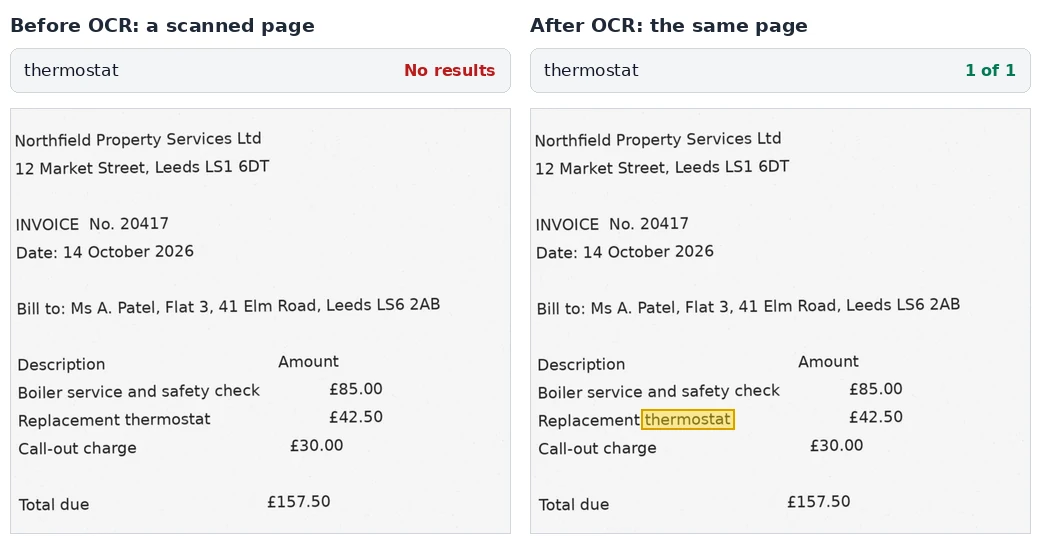
In our test, a one-page sample invoice, made as a 200 dpi image and tilted and roughened to look like a real scan, was read in about 4 seconds on a computer with a fast connection, with every word and amount correct. The first time you use it, the recognition engine and language download (about 5 to 15 MB), which takes longer on a slow connection. Poorer scans give more errors, and phones are slower.
Check the result
OCR reads pictures, so it can mistake similar shapes, such as 0 and O, 1 and l, or "rn" and "m". Before you rely on the file, search for a few words you know are there, and check names, dates and amounts against the page. OCR PDF is built for printed text and reads handwriting poorly, so don't expect handwritten notes to become searchable.
Getting a better result
- Scan at about 300 dpi. The Tesseract project, whose open-source engine OCR PDF uses, says it "works best on images which have a DPI of at least 300 dpi". Going much higher only makes the file bigger.
- Pick the right language. The wrong language setting can garble the result, especially for accented letters and non-Latin scripts.
Straight pages, even light and a tight crop help too. Our guide on copying text from a scanned PDF has more tips for scans and phone photos.
Other ways to do it
- Google Drive: right-click the PDF and choose Open with > Google Docs. Google turns the text into a new Google Doc rather than making the PDF itself searchable. Its help page says the file should be 2 MB or smaller, and that lists, tables, columns, footnotes and endnotes are not likely to be detected. The file is uploaded to your Google account.
- Adobe Acrobat: Acrobat has its own OCR feature for scanned PDFs. Check whether your Acrobat plan includes it.
- Your scanner app: for future scans, look for an OCR or "searchable PDF" setting so new files are searchable from the start.
Scans are often the documents you'd least want to upload: ID cards, bank letters, contracts, medical letters. Our guide to PDF tools that don't upload your files shows how to check any tool for yourself.
When a searchable PDF is required
- Court filing: some courts require text-searchable PDFs. The US Bankruptcy Court for the District of Nevada, for example, says pleadings and main documents filed in its CM/ECF system "must be in text searchable PDF format". Check your own court's rules.
- Accessibility: screen readers can't read a picture of text. The W3C's accessibility guidance lists running OCR on scanned PDFs as a way to provide actual text. OCR is the first step: a fully accessible PDF also needs tags and a checked reading order.
Questions
Why can't I search my scanned PDF?
A scanned PDF stores each page as a picture, so there's no text for search to find. Run OCR on it to add real text behind each page.
Does OCR change how my PDF looks?
Not with OCR PDF. The original pages are kept exactly as they are, and the recognized words are added as invisible text in the matching places.
Why does text I copy from a PDF come out as symbols?
The file stores its text without a correct map from character codes to letters, so the page looks right but the text underneath is scrambled. In OCR PDF, choose Every page to read the page from how it looks.
Why isn't my compressed PDF searchable any more?
Some compression levels, including Recommended and Smallest file in our Compress PDF (and Exact size when it has to), save each page as an image. Use the original, compress with Light instead, or run OCR PDF on the compressed copy.
Can I make a PDF searchable for free?
Yes. OCR PDF is free, has no sign-up and works in your browser in 28 languages, up to 300 pages at a time.
Is my PDF uploaded when I use OCR PDF?
No. The recognition engine downloads to your browser, and your pages are read on your own device.
Try these tools
How we write our guides: the limits, formats and prices of other organisations in this guide are checked against the official pages linked under Sources, on the date shown. Instructions describe only features our tools actually have. Spotted something out of date? Tell us and we'll correct it.
Sources
- Adobe Acrobat Help: PDF properties and metadata (checked 27 October 2026)
- Adobe Illustrator on the web (Beta) Help: Create outline text (checked 27 October 2026)
- Adobe Acrobat Help: Recognize text in scanned documents (checked 27 October 2026)
- Tesseract documentation: Improving the quality of the output (checked 27 October 2026)
- Google Drive Help: Convert PDF and photo files to text (checked 27 October 2026)
- US Bankruptcy Court, District of Nevada: Text searchable PDFs (checked 27 October 2026)
- W3C: PDF7, Performing OCR on a scanned PDF document to provide actual text (checked 27 October 2026)
Adobe, Acrobat and Illustrator are trademarks of Adobe Inc. Google, Google Drive and Google Docs are trademarks of Google LLC. Microsoft, Word and Notepad are trademarks of Microsoft Corporation. Apple and TextEdit are trademarks of Apple Inc. W3C is a trademark of the World Wide Web Consortium. PDF ProMaster is independent and isn't affiliated with, endorsed by or sponsored by them. Comparisons are based on the sources above; if anything here is out of date, please let us know and we'll correct it.